Dynamics Operations
The Dynamics Operations page provides administrators with visibility and control over the Microsoft Dynamics Connector.
The connector is responsible for executing FetchXML queries against Microsoft Dynamics CRM, extracting source data and delivering that data into the CryspIQ® processing pipeline.
This guide explains how to:
- Monitor connector health
- Start and stop the connector service
- Pause and resume scheduled processing
- Run selected Dynamics queries
- Perform full extracts
- Review operational statistics
- Troubleshoot common extraction issues
Overview
The Dynamics extraction process follows the workflow below:
FetchXML Query
        ↓
Dynamics Connector
        ↓
Microsoft Dynamics CRM
        ↓
Source Data Extract
        ↓
Source Message Validation
        ↓
Message Mapping
        ↓
CryspIQ® Enterprise Data Model
Administrators use Dynamics Operations to monitor and manage this process.
Screen Overview
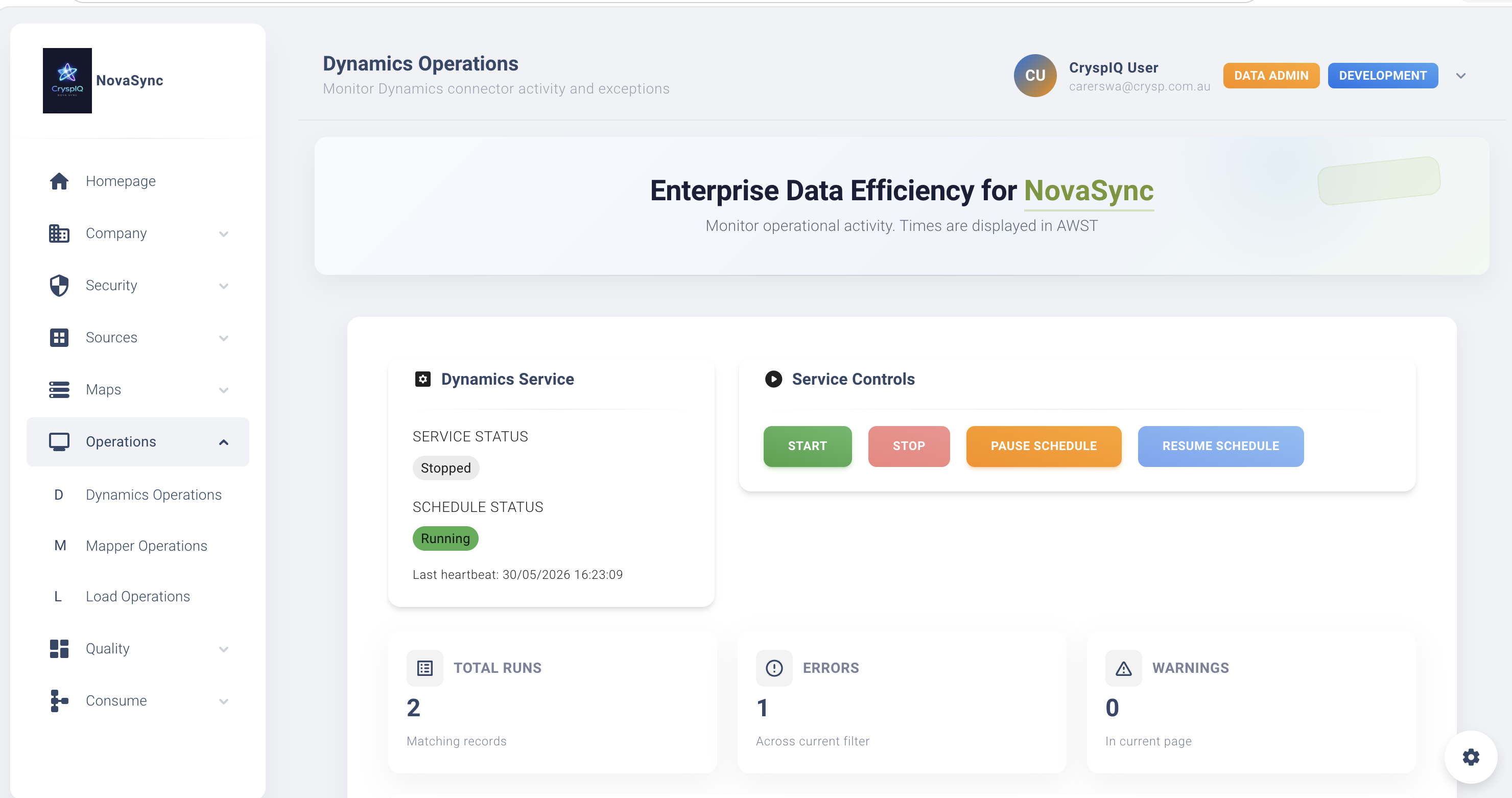
The Dynamics Operations page provides an operational view of the connector service, schedule status, run history and processing statistics.
Service Status
The Service Status indicator displays the current state of the Dynamics Connector service.
| Status | Description |
|---|---|
| Running | The connector service is operating normally. |
| Stopped | The connector service is not running. |
| Starting | The connector service is starting. |
| Stopping | The connector service is shutting down. |
If the service is stopped, scheduled extraction will not run.
Schedule Status
The Schedule Status indicator shows whether scheduled query execution is active.
| Status | Description |
|---|---|
| Running | Scheduled extracts are active. |
| Paused | Scheduled extracts are suspended. |
Pausing the schedule does not stop the connector service. It only prevents scheduled runs from starting automatically.
Service Controls
Administrators can control the connector from the Service Controls area.
| Action | Description |
|---|---|
| Start | Starts the Dynamics Connector service. |
| Stop | Stops the Dynamics Connector service. |
| Pause Schedule | Suspends scheduled query execution. |
| Resume Schedule | Restarts scheduled query execution. |
Use these controls when performing maintenance, investigating issues or temporarily preventing scheduled extraction.
Last Heartbeat
The Last Heartbeat shows the most recent successful communication from the connector.
The heartbeat helps confirm:
- The service is running
- The service can communicate with CryspIQ®
- Operational monitoring is active
A stale heartbeat may indicate:
- Service failure
- Network interruption
- Infrastructure outage
- Connector configuration issues
Statistics
The summary cards provide a quick view of connector health.
Typical statistics include:
- Total runs
- Successful runs
- Errors
- Warnings
- Last run duration
Use these indicators to quickly identify whether the connector is operating normally.
Running Dynamics Queries
Administrators can execute individual Dynamics queries on demand.
This is useful when:
- Testing a new FetchXML query
- Validating query changes
- Re-running a failed extract
- Reloading a specific dataset
- Investigating a Dynamics issue
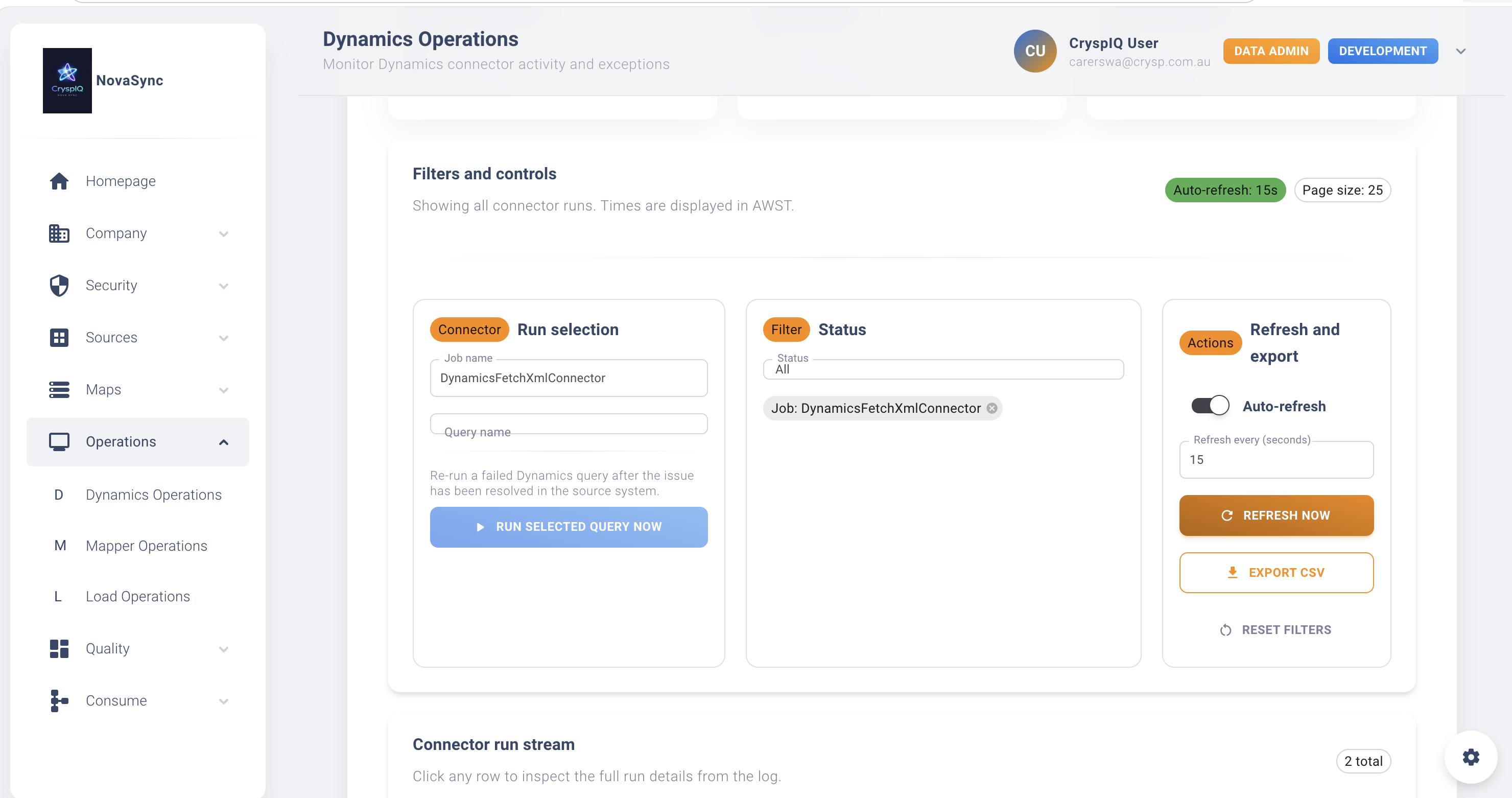
Query Execution Panel
The query execution panel allows administrators to select and run a specific Dynamics query.
Job Name
The Job Name identifies the connector service.
Example:
DynamicsFetchXmlConnector
Query Name
The Query Name identifies the FetchXML query to execute.
Examples:
Accounts
Contacts
Products
Invoices
Opportunities
Cases
Run Selected Query Now
Selecting Run Selected Query Now immediately runs the selected query without waiting for the next scheduled interval.
When the query runs, CryspIQ® uses the configured:
- FetchXML query
- Source Message
- Message Map
- Defaults
- Methods
- Data Quality Rules
Full Extracts
Full extracts are used when a complete reload of source data is required.
Unlike incremental processing, a full extract retrieves all records that match the query.
Full Extract for a Single Query
A full extract for a single query reloads all records for one selected query.
Typical scenarios include:
- Missing records have been identified
- Query logic has changed
- A reconciliation exercise is required
- Historical data needs to be reloaded
Example:
Accounts
Full Extract for All Queries
A full extract for all queries reloads data across every configured Dynamics query.
Typical scenarios include:
- New implementation
- Environment rebuild
- Major data correction
- Enterprise data refresh
Full extracts may take significantly longer than incremental processing and may create larger processing volumes.
Monitoring Best Practices
Administrators should monitor Dynamics Operations regularly.
Daily Checks
- Confirm the service is running
- Confirm heartbeat activity
- Review failed runs
- Review warning counts
- Confirm scheduled processing is active
Weekly Checks
- Review query performance
- Review extraction volumes
- Investigate recurring warnings
- Confirm expected datasets are being extracted
Monthly Checks
- Review long-running queries
- Review full extract activity
- Confirm operational processes remain current
- Review related Source Messages and Message Maps
Common Processing Failures
Most Dynamics Operations issues fall into three categories:
- Failed Dynamics query execution
- Invalid FetchXML query configuration
- Source Message or Mapper validation failure
Failed Dynamics Query
Symptoms
The query status displays:
Error
Common Causes
- Microsoft Dynamics CRM is unavailable
- Connector credentials are invalid
- The query timed out
- A network interruption occurred
- Dynamics returned an execution error
Resolution
- Verify Microsoft Dynamics CRM is available.
- Verify connector credentials are correct.
- Review the connector logs.
- Re-run the query after the issue is resolved.
Invalid FetchXML Query
Symptoms
The query fails during execution or returns an unexpected error.
Common Causes
- Invalid XML syntax
- Invalid Dynamics entity name
- Invalid attribute name
- Unsupported relationship
- Incorrect filter logic
- Query references a field that no longer exists
Resolution
- Open Sources → FetchXML Query.
- Review the FetchXML definition.
- Validate the entity and attribute names.
- Test the query directly against Dynamics where possible.
- Correct the FetchXML.
- Re-run the extraction.
Source Message Validation Failure
Symptoms
The Dynamics query completes, but the data does not progress into Mapper processing.
Common Causes
Source Message Not Defined
Every extracted dataset must have a matching Source Message definition.
If the Source Message does not exist, processing cannot continue.
Message Map Does Not Exist
Every Source Message requires an active Message Map.
If no map exists, the extracted data cannot be transformed into the CryspIQ® Enterprise Data Model.
Mandatory Fields Missing
Source Messages can define mandatory fields expected in the incoming data.
If the extracted Dynamics data does not include those fields, validation fails.
Examples of mandatory fields may include:
CustomerId
InvoiceNumber
ProductCode
ModifiedDate
Resolution
- Verify the Source Message exists.
- Verify an active Message Map exists.
- Confirm the extracted data contains all mandatory fields.
- Update the FetchXML query if required.
- Re-run the extraction.
Troubleshooting Checklist
When investigating a Dynamics Operations issue, use this checklist.
1. Check Service Status
Confirm the Dynamics Connector service is running.
2. Check Schedule Status
Confirm the schedule is running unless intentionally paused.
3. Check Last Heartbeat
Confirm the heartbeat is recent.
4. Review Run History
Review failed or warning runs.
5. Review FetchXML Query
Confirm the query is valid and returns the expected fields.
6. Review Source Message
Confirm the Source Message exists and matches the extracted data structure.
7. Review Message Map
Confirm an active Message Map exists for the Source Message.
8. Check Mandatory Fields
Confirm mandatory fields are included in the extracted data.
9. Review Mapper Operations
If extraction succeeds but mapping fails, review Mapper Operations.
10. Review Load Operations
If mapping succeeds but data is not available, review Load Operations.
Example Issue: Missing Mandatory Field
A FetchXML query extracts account data from Dynamics.
The Source Message expects:
AccountId
AccountName
ModifiedDate
However, the FetchXML only returns:
AccountId
AccountName
Because ModifiedDate is mandatory, the data fails validation before mapping.
Fix
Update the FetchXML query to include:
<attribute name="modifiedon" />
Then re-run the query.
Example Issue: No Active Map
A new FetchXML query is created for Products.
The connector extracts data successfully, but processing stops because no active Message Map exists for the Product Source Message.
Fix
- Create the Product Source Message if required.
- Create or activate the Product Message Map.
- Re-run the Product query.
Related Guides
- FetchXML Queries
- Source Messages
- Upload Source Data
- Create Message Maps
- Mapper Operations
- Load Operations
Next Steps
After Dynamics extraction is operating successfully:
- Verify Source Messages are maintained.
- Review Message Maps regularly.
- Monitor Mapper Operations.
- Monitor Load Operations.
- Review Data Quality dashboards.
- Validate extracted data using the Query Library or Query Tool.
The Dynamics Connector is the first step in transforming Microsoft Dynamics CRM data into trusted enterprise information within CryspIQ®.